In this article, we will learn how to create a dynamic form in ASP.NET. Here, dynamic means that we will create the controls at run time.
Suppose someone asks you to create a form in ASP.NET. Naturally, your first response might be, “It’s easy!”—you would go to an ASPX page, drag the required controls from the toolbox, and the form would be ready in no time. However, what if you’re told not to use the toolbox or even the ASPX page to add controls? Instead, you are required to dynamically create the form and its controls at runtime.
Is this possible? Yes, absolutely!
Understand the Requirement
Before jumping into code, always ensure you clearly understand the requirement. Without a thorough understanding, perfect implementation becomes difficult. You are required to generate a dynamic form at runtime with specific form fields and control types, and you must be able to retrieve the user input values from these dynamically created controls.
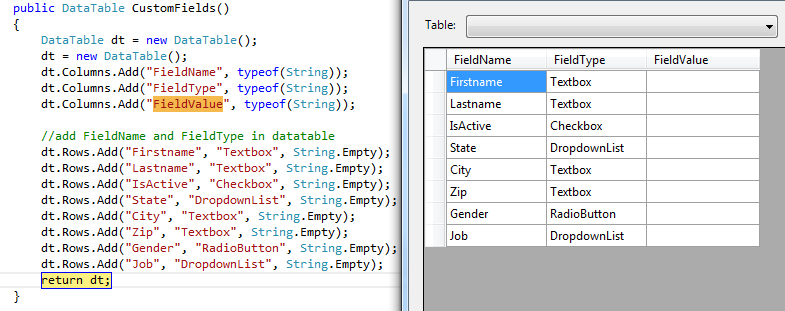
In the above image, I created a function according to our needs. In this function, I created a data table with three columns (Fieldname, Fieldtype, and Fieldvalue). Let’s create another function in which we will create the ASP.NET controls that will return the DataTable according to the current function.
Function to create dynamic form in ASP.NET
public void CreateDynamicControls()
{
    DataTable dt = new DataTable();
    dt = CustomFields();  //calling the function which describe the fieldname and fieldtype
    if(dt.Rows.Count>0)
    {
        for(Int32 i=0;i<dt.Rows.Count;i++)
        {
            HtmlGenericControl tr = new HtmlGenericControl("tr");
            HtmlGenericControl td = new HtmlGenericControl("td");
            HtmlGenericControl td1 = new HtmlGenericControl("td");

            String FieldName=Convert.ToString(dt.Rows[i]["FieldName"]);
            String FieldType = Convert.ToString(dt.Rows[i]["FieldType"]);
            String FieldValue = Convert.ToString(dt.Rows[i]["FieldValue"]);

            Label lbcustomename = new Label();
            lbcustomename.ID = "lb" + FieldName;
            lbcustomename.Text = FieldName;
            td.Controls.Add(lbcustomename);
            tr.Controls.Add(td);

            if (FieldType.ToLower().Trim()=="textbox")
            {
                TextBox txtcustombox = new TextBox();
                txtcustombox.ID = "txt" + FieldName;
                txtcustombox.Text = FieldValue;
                td1.Controls.Add(txtcustombox);
            }
            else if(FieldType.ToLower().Trim() == "checkbox")
            {
                CheckBox chkbox = new CheckBox();
                chkbox.ID = "chk" + FieldName;
                if(FieldValue=="1")
                {
                    chkbox.Checked = true;
                }
                else
                {
                    chkbox.Checked = false;
                }
                td1.Controls.Add(chkbox);
            }
            else if (FieldType.ToLower().Trim() == "radiobutton")
            {
                RadioButtonList rbnlst = new RadioButtonList();
                rbnlst.ID = "rbnlst" + FieldName;
                rbnlst.Items.Add(new ListItem("Male","1"));
                rbnlst.Items.Add(new ListItem("Female", "2"));
                if(FieldValue!=String.Empty)
                {
                    rbnlst.SelectedValue = FieldValue;
                }
                else
                {
                    rbnlst.SelectedValue = "1";
                }
                rbnlst.RepeatDirection =RepeatDirection.Horizontal;
                td1.Controls.Add(rbnlst);
            }
            else if(FieldType.ToLower().Trim() == "dropdownlist")
            {
                DropDownList ddllst = new DropDownList();
                ddllst.ID = "ddl" + FieldName;
                ddllst.Items.Add(new ListItem("Select", "0"));

                if(FieldName.ToLower().Trim()=="state")
                {
                    ddllst.Items.Add(new ListItem("Alabama", "AL"));
                    ddllst.Items.Add(new ListItem("Alaska", "AK"));
                    ddllst.Items.Add(new ListItem("Arizona", "AZ"));
                    ddllst.Items.Add(new ListItem("California", "CA"));
                    ddllst.Items.Add(new ListItem("New York", "NY"));
                }
                else if(FieldName.ToLower().Trim() == "job")
                {
                    ddllst.Items.Add(new ListItem("Developer", "1"));
                    ddllst.Items.Add(new ListItem("Tester", "2"));
                }
                if (FieldValue != String.Empty)
                {
                    ddllst.SelectedValue = FieldValue;
                }
                else
                {
                    ddllst.SelectedValue = "0";
                }
                td1.Controls.Add(ddllst);
            }
            tr.Controls.Add(td1);
            placeholder.Controls.Add(tr);

            //Add button  after last record
            if (i==dt.Rows.Count-1)
            {
                tr = new HtmlGenericControl("tr");
                td = new HtmlGenericControl("td");
                Button btnSubmit = new Button();
                btnSubmit.ID = "btnSave";
                btnSubmit.Click += btnSave_Click;
                btnSubmit.OnClientClick = "return ValidateForm();";
                btnSubmit.Text = "Save";
                td.Controls.Add(btnSave);
                td.Attributes.Add("Colspan", "2");
                td.Attributes.Add("style", "text-align:center;");
                tr.Controls.Add(td);
                placeholder.Controls.Add(tr);
            }
        }
    }
} Page load event
protected void Page_Load(object sender, EventArgs e)
{
    CreateDynamicControls();
}
So, hit the F5 button and see the output. Our form is ready. If we have taken the controls on aspx page, it will work fine. So, let’s check the aspx page.
            <body>
                <form runat="server" id="form1">
                    <div style="margin: auto; width: 100%">
                        <table>
                            <tr>
                                <td>
                                    <%--Dynamic Control Here--%>
                                    <asp:PlaceHolder runat="server" ID="placeholder"></asp:PlaceHolder>
                                    <%--Dynamic Control Here--%>
                                </td>
                            </tr>
                        </table>
                    </div>
                </form>
            </body>
We just have a placeholder where we added controls dynamically in the code behind. Now, the form is ready.
Let’s move to the next requirement, to read the data from these controls. Since we have created these controls dynamically, we have to read the data from these controls in the same way. I created a new function to read the data from these fields. I tried to make this function as short and as dynamic as I could.
Function to Retrieve Input Values
public void Save()
{
    DataTable dtFormValues = new DataTable();
    dtFormValues.Columns.Add("FormId", typeof(Int32));
    dtFormValues.Columns.Add("FieldName", typeof(String));
    dtFormValues.Columns.Add("Value", typeof(String));

    DataTable dt = new DataTable();
    dt = CustomFields();
    if (dt.Rows.Count > 0)
    {
        for (Int32 i = 0; i < dt.Rows.Count; i++)
        {
            String FieldName = Convert.ToString(dt.Rows[i]["FieldName"]);
            String FieldType = Convert.ToString(dt.Rows[i]["FieldType"]);
            dtFormValues.NewRow();

            if (FieldType.ToLower().Trim() == "textbox")
            {
                TextBox txtbox = (TextBox)placeholder.FindControl("txt" + FieldName);
                if (txtbox != null)
                {
                    dtFormValues.Rows.Add(ClientId, FieldName, txtbox.Text);
                }
            }
            else if (FieldType.ToLower().Trim() == "checkbox")
            {
                CheckBox checkbox = (CheckBox)placeholder.FindControl("chk" + FieldName);
                if (checkbox != null)
                {
                    dtFormValues.Rows.Add(ClientId, FieldName, checkbox.Checked ? "1" : "0");
                }
            }
            else if (FieldType.ToLower().Trim() == "radiobutton")
            {
                RadioButtonList radiobuttonlist = (RadioButtonList)placeholder.FindControl("rbnlst" + FieldName);
                if (radiobuttonlist != null)
                {
                    dtFormValues.Rows.Add(ClientId, FieldName, radiobuttonlist.SelectedValue);
                }
            }
            else if (FieldType.ToLower().Trim() == "dropdownlist")
            {
                DropDownList dropdownlist = (DropDownList)placeholder.FindControl("ddl" + FieldName);
                if (dropdownlist != null)
                {
                    dtFormValues.Rows.Add(ClientId, FieldName, dropdownlist.SelectedValue);
                }
            }
        }
    }
}
We created a function in which we call the same function where we have the fieldname and fieldtype. Through that, we would find the control in the placeholder with the dynamic ID and create a data table.
After finding the control, we added the data to this data table. Now, in this for loop, you can save this data table into your database. I haven’t done it yet, but I will show you how the data I put in the form gets added in this data table.
Save button event
protected void btnSave_Click(object sender, EventArgs e)
{
     Save();
}
Now, enable break breakpoint in this Save function and see after the for loop result in the data table if you get the correct data or not. When we fill the form and hit the submit button, the values are stored in the data table. You can save these values in the database.
I haven’t saved the values in the database, just created the dynamic form to show you how we can get the values from these controls. That’s it for now.
